
Automated UI Testing with Selenium and Python
Automate your browser, test like a pro—from finding elements to building scalable test suites with the Page Object Model.
About
This hands-on course shows you how to automate UI testing in Python with Selenium WebDriver, the browser automation tool trusted by QA engineers and test automation teams worldwide.
You’ll begin with the essentials: launching a browser, selecting elements, and simulating user interactions. Then you’ll level up by building structured test automation using pytest, and apply the Page Object Model (POM), a best-practice design pattern in UI test automation.
Your result: a complete Python-based UI test suite and the skills to automate interfaces, catch regressions, and test smarter in real projects.
Content
- introduction
- starting browser with selenium webdriver
- web page structure
- finding elements
- practice writing css selectors
- finding elements with Selenium Webdriver
- basic selenium methods
- working with files, dropdowns and js scripts
- working with windows
- waits and expected conditions
- web application testing and test frameworks
- pytest test runner
- using fixtures in pytest
- marking tests with pytest
- test configuration, parametrization, plugins
- what is page object model?
- writing test with page object model
- in conclusion
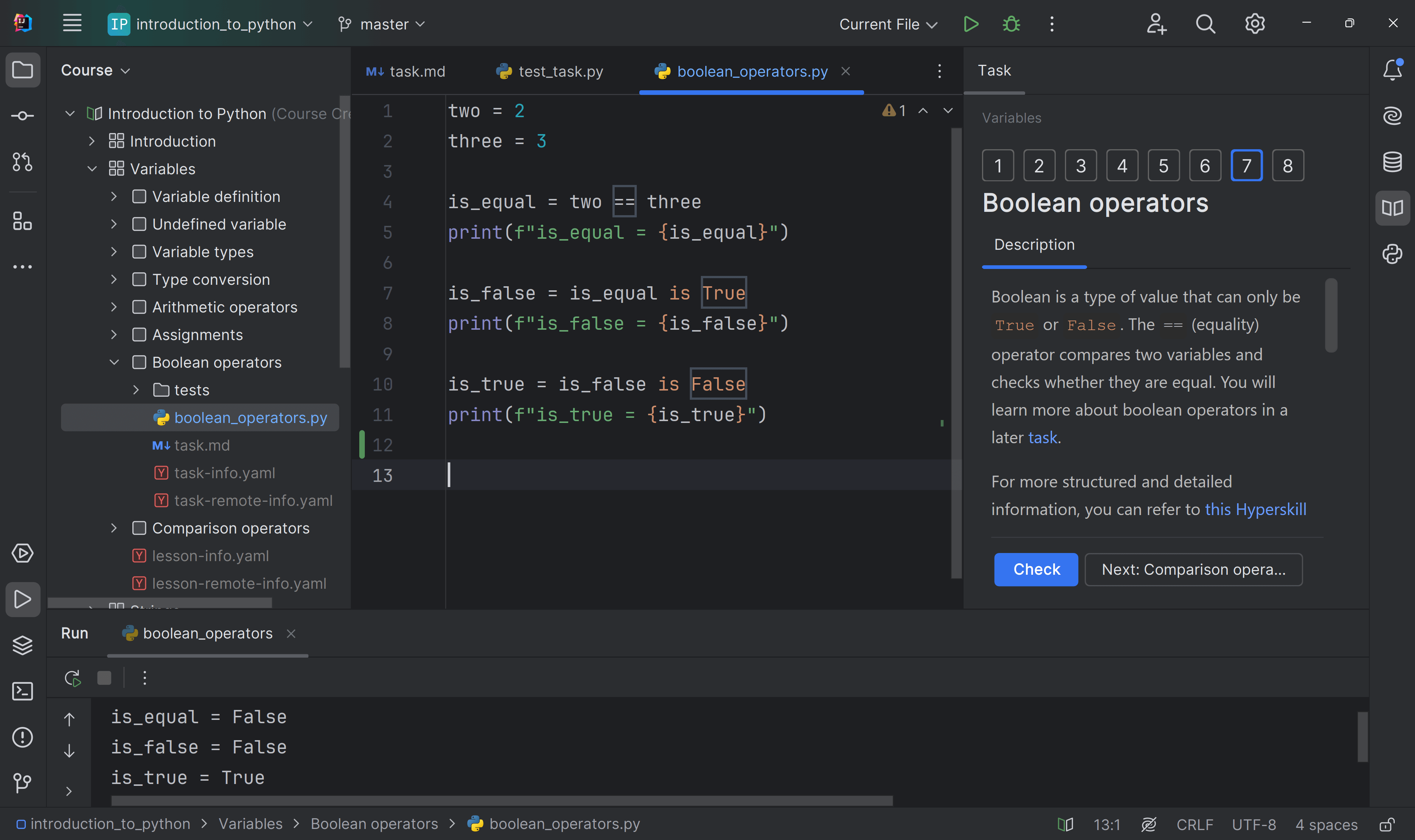
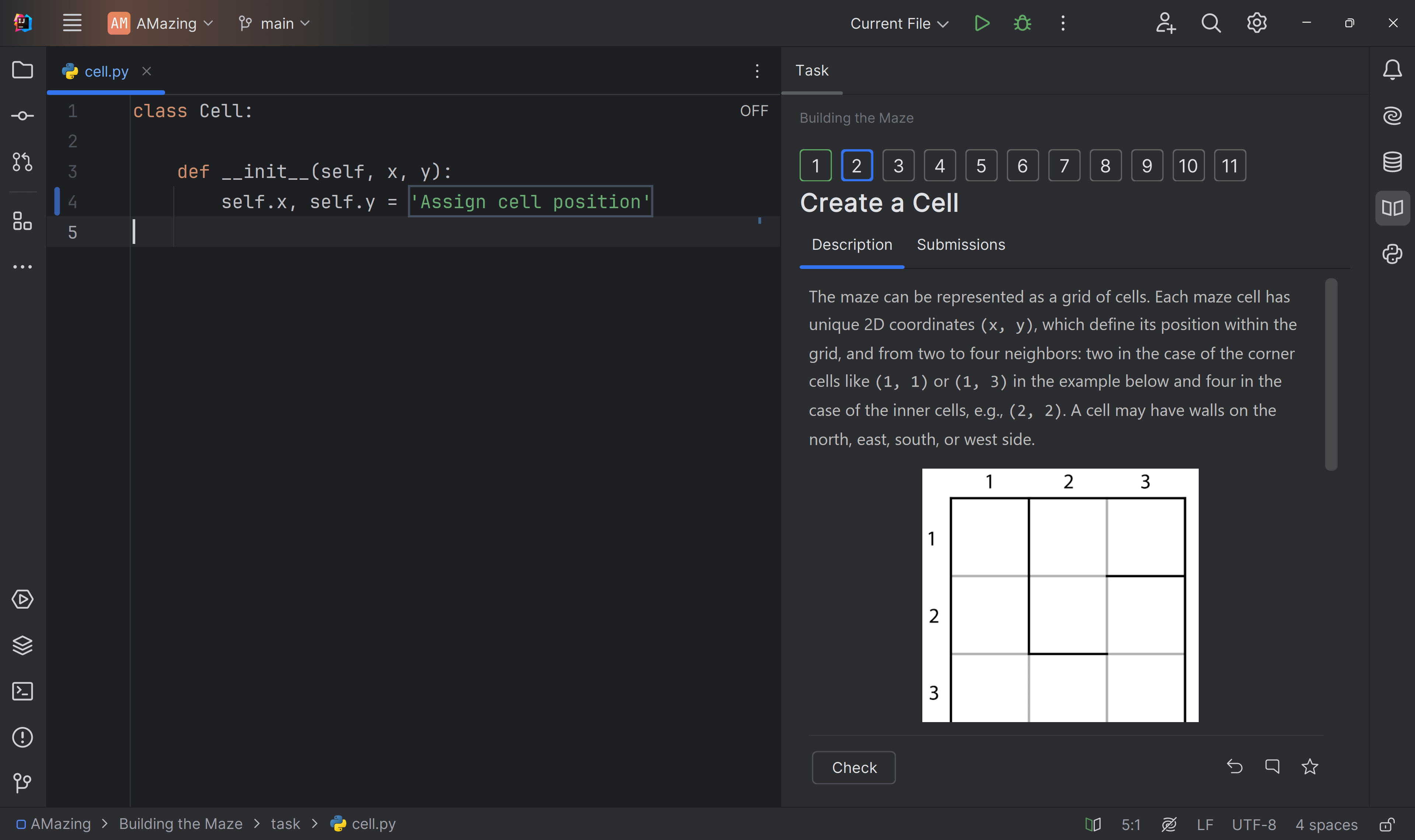
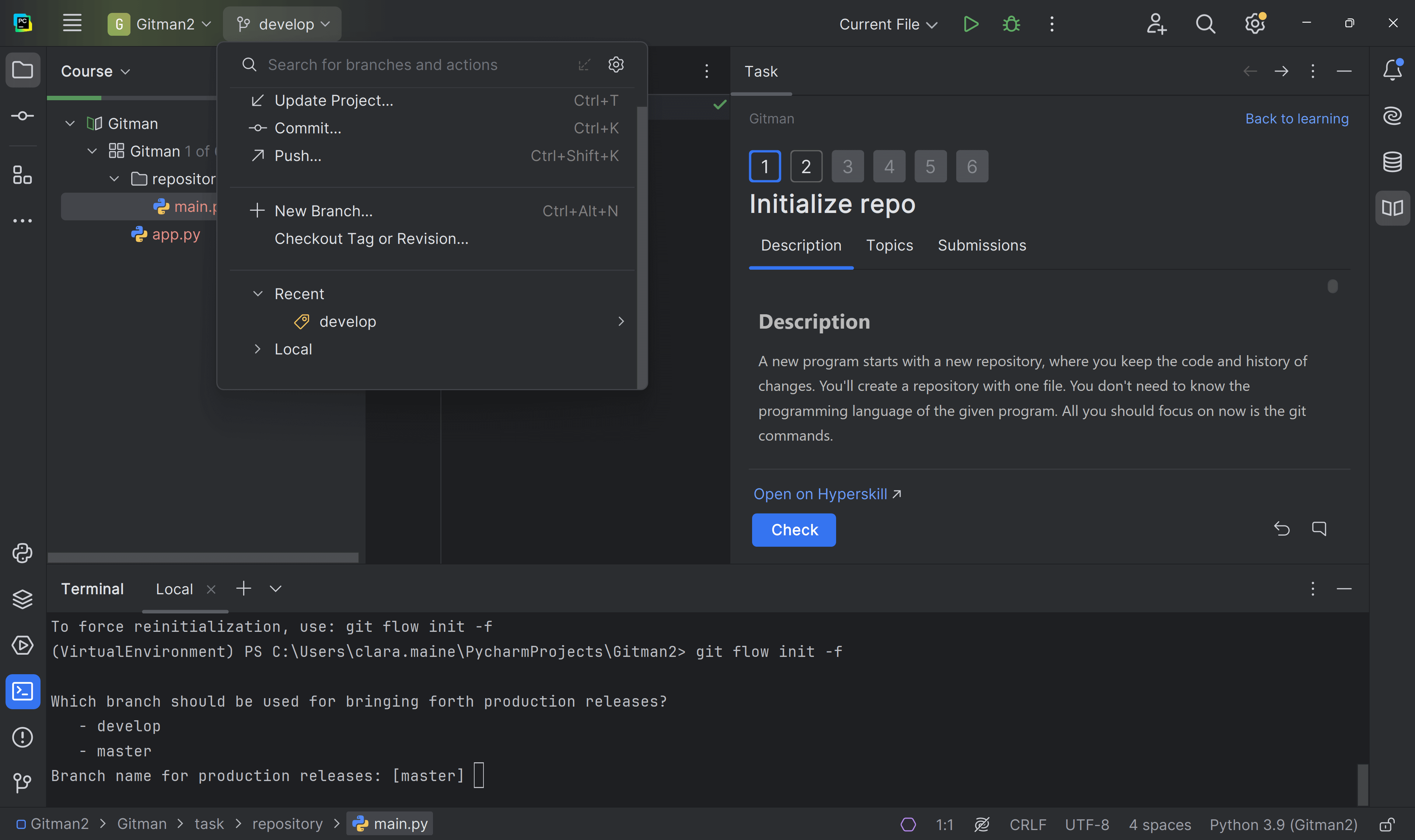
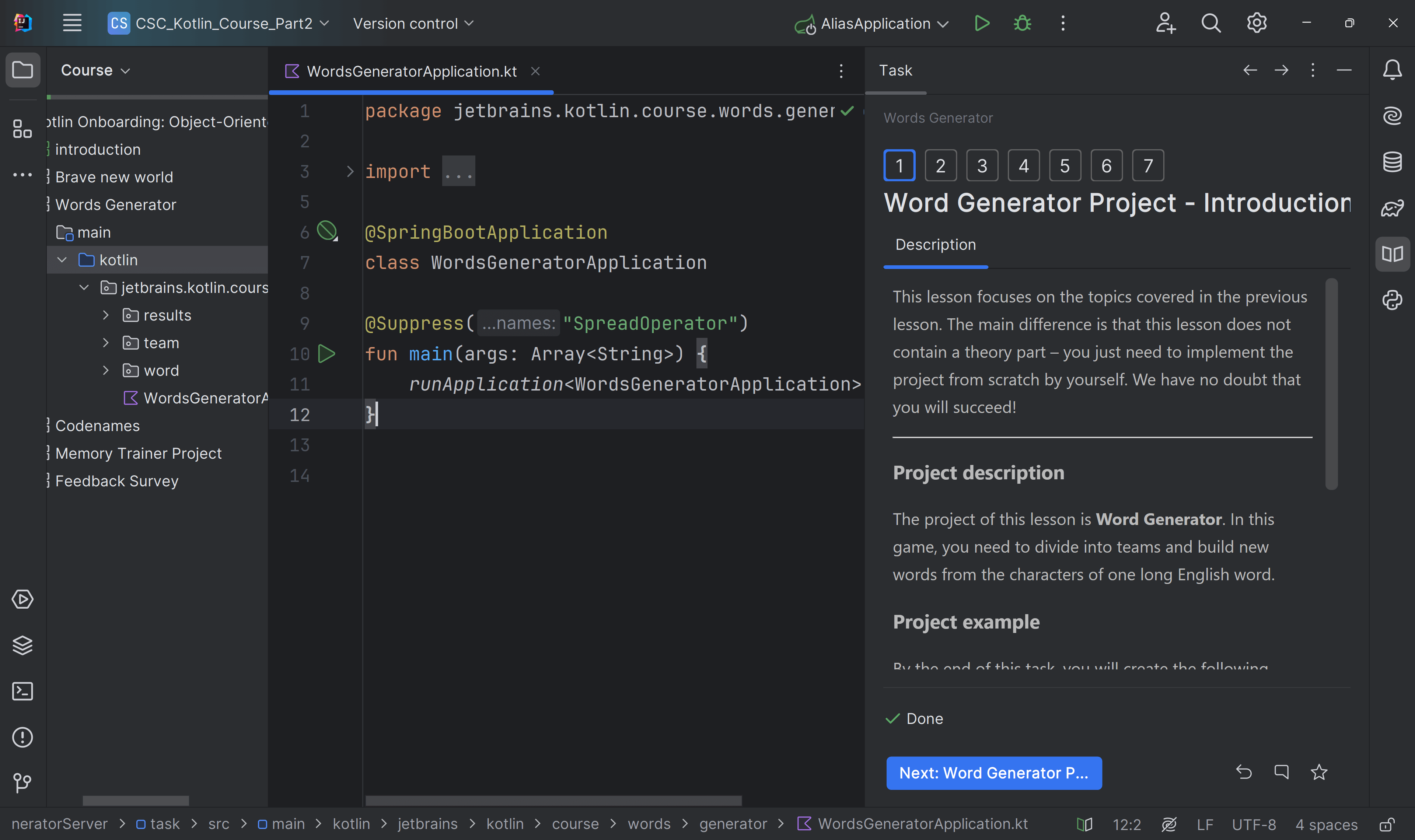

What do you need to start?
The JetBrains Toolbox App 2.7+ makes setting up your course effortless. Already have a compatible IDE? It will launch it. If not, the app will install the right free IDE for your course.
Learn more about our licences here.
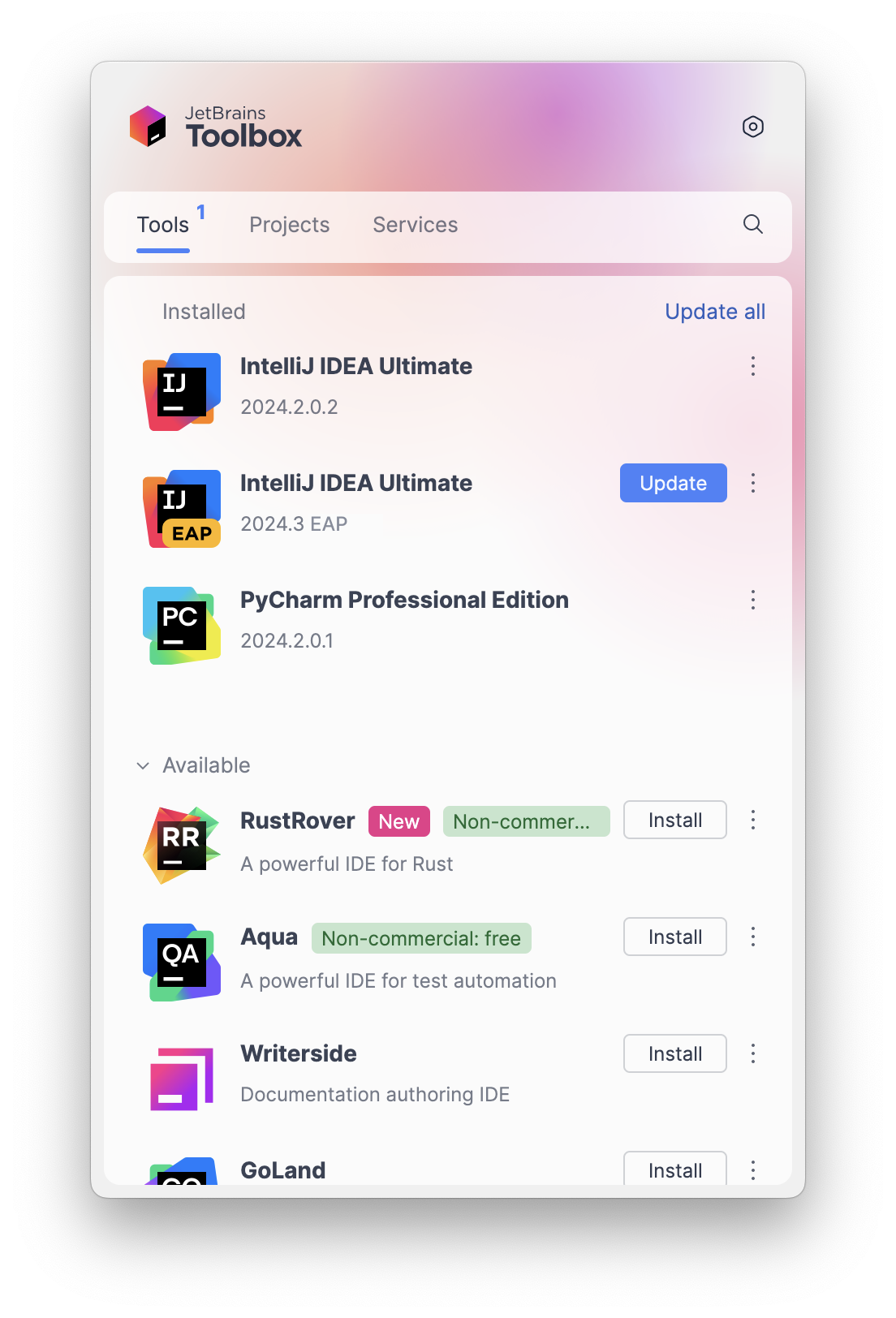
Click Launch course and then Allow to open the Toolbox App.
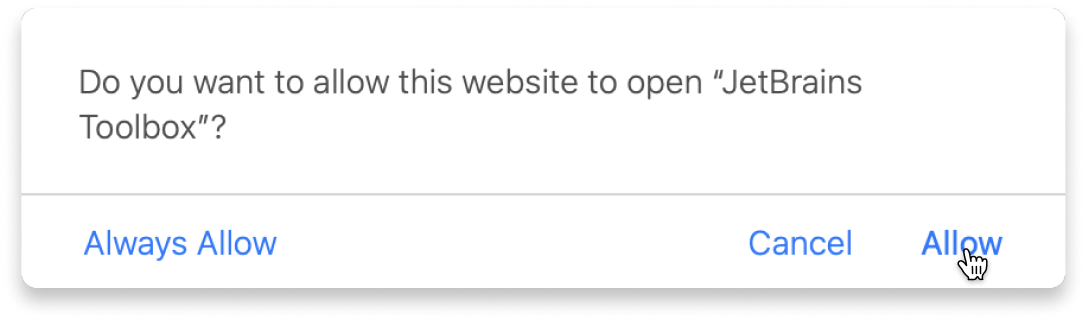
Select Always Allow to skip this confirmation in the future.
To return to the course later, find it in your IDE's recent projects.
Need more help? Check out our guide.
The JetBrains Toolbox App 2.7+ makes setting up your course effortless. Already have a compatible IDE? It will launch it. If not, the app will install the right free IDE for your course.
Learn more about our licences here.
Click Launch course and then Allow to open the Toolbox App.
Select Always Allow to skip this confirmation in the future.
To return to the course later, find it in your IDE's recent projects.
Need more help? Check out our guide.
FAQ and troubleshooting
Yes, you will need the JetBrains Toolbox App and a JetBrains IDE.
Just click this link to install the JetBrains Toolbox App. We've taken care of all the necessary settings, and the app will handle the rest of the setup for you.
The JetBrains Toolbox App checks which IDE is compatible with your course and whether it is installed on your computer. If you have the necessary IDE installed, the app will open it. If not, JetBrains Toolbox will initiate the installation, prioritizing free community editions.
Yes, the JetBrains Toolbox App is essential even if you already have a JetBrains IDE. It automatically prepares your IDE for studying by installing the essential plugins and updating the IDE if necessary.
Please make sure you have the latest version of the JetBrains Toolbox App. To update, open the app and click Update Toolbox App, or download the latest version here.
If you’re using a Chrome-based browser, please also allow Find devices on local networks in the popup that appears on the course page. When this permission is granted, the page will detect when the Toolbox App opens on your system and you’ll be able to open the course properly.
Yes! It's 100% free and works with both the free and paid versions of JetBrains IDEs.
If you're a student, apply for the Student Pack to get full access to JetBrains IDEs for the duration of your studies. If not, check if you qualify for a free non-commercial license.