
About
Content
- Kotlin Onboarding - Welcome!
- Duck Shop - Introduction
- Duck Shop - How to Run
- Duck Shop - List definition
- Duck Shop - Duck List Initialization
- Duck Shop - Set definition
- Duck Shop - Duck Set Initialization
- Duck Shop - Map definition
- Duck Shop - Duck Map Initialization
- Duck Shop - Mutable Collections
- Duck Shop - Remove Elements
- Duck Shop - Add Elements
- Duck Shop - Built-In Functions
- Duck Shop - Filter Function
- Duck Shop - Partition Function
- Duck Shop - Shuffle Function
- Duck Shop - Sort Function
- Duck Shop - Possible Improvements
- Old School - Introduction
- Old School - How to Run
- Old School - List of Colors
- Old School - Helper Functions
- Old School - Find Photo
- Old School - GroupBy function
- Old School - Group Photos by Background Color
- Old School - Group Photos by Hair Type and Hat Presence
- Old School - Possible Improvements
- Back to The Future - Introduction
- Back to The Future - How to Run
- Back to The Future - FIFO
- Back to The Future - LIFO
- Back to The Future - FIFO and LIFO in Kotlin
- Back to The Future - Commands Storage
- Back to The Future - Add Commands
- Back to The Future - Get Commands
- Back to The Future - Possible Improvements
- Master Chef - Introduction
- Master Chef - How to Run
- Master Chef - The Kitchen, Models
- Master Chef - Fridge Refill
- Master Chef - List vs. Sequence
- Master Chef - Cook Tomato Soup
- Master Chef - Sequence Initialization
- Master Chef - Add Spices
- Master Chef - Cook Salad
- Master Chef - Cook Smoothie
- Master Chef - Possible Improvements
- Survey
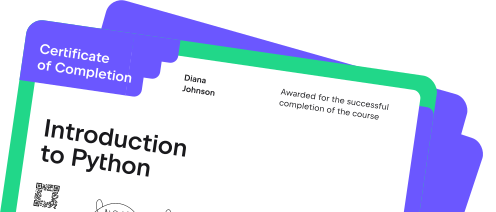
Contains certificate
Add it to your resume or LinkedIn profile so recruiters can easily see your achievement.
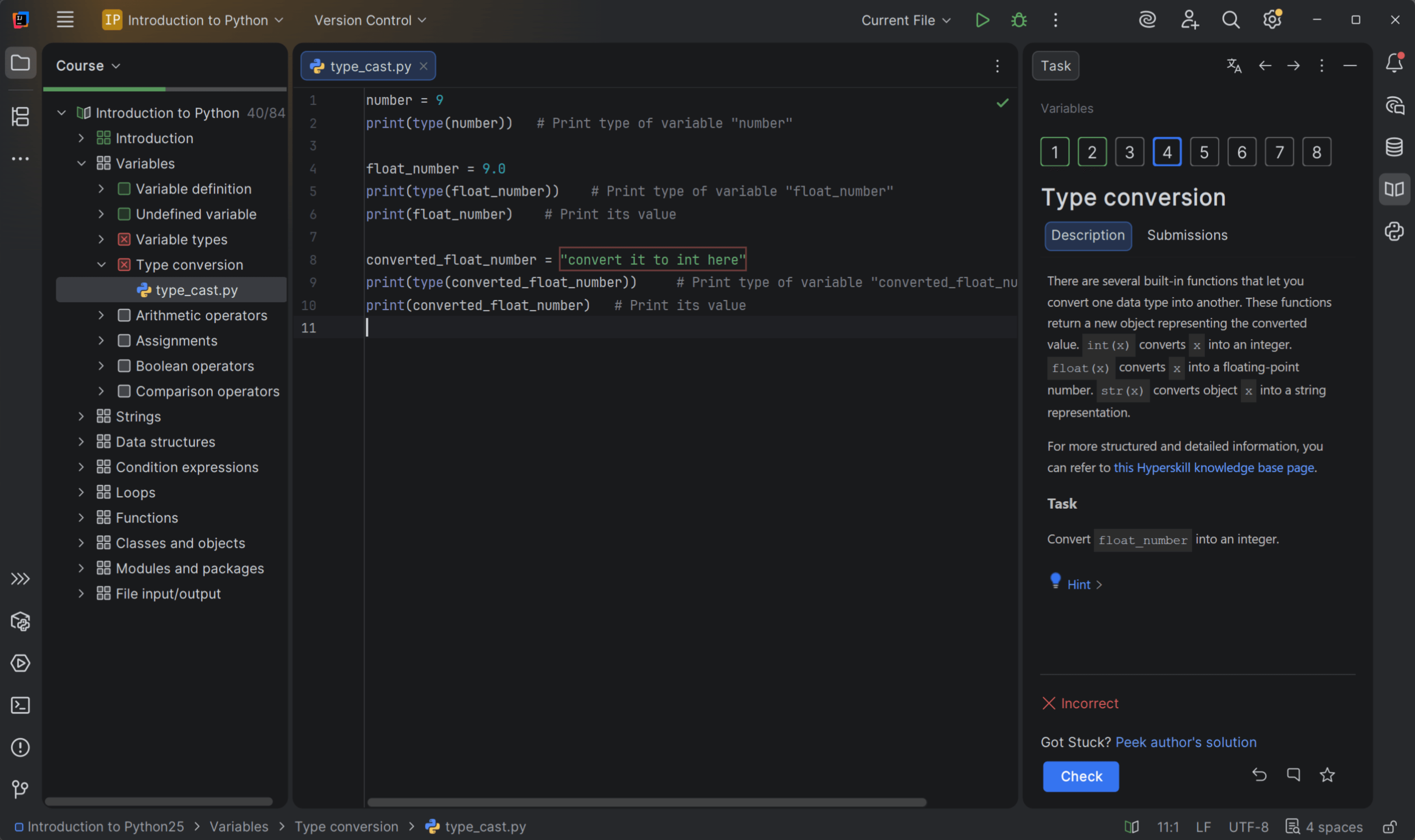

What do you need to start?
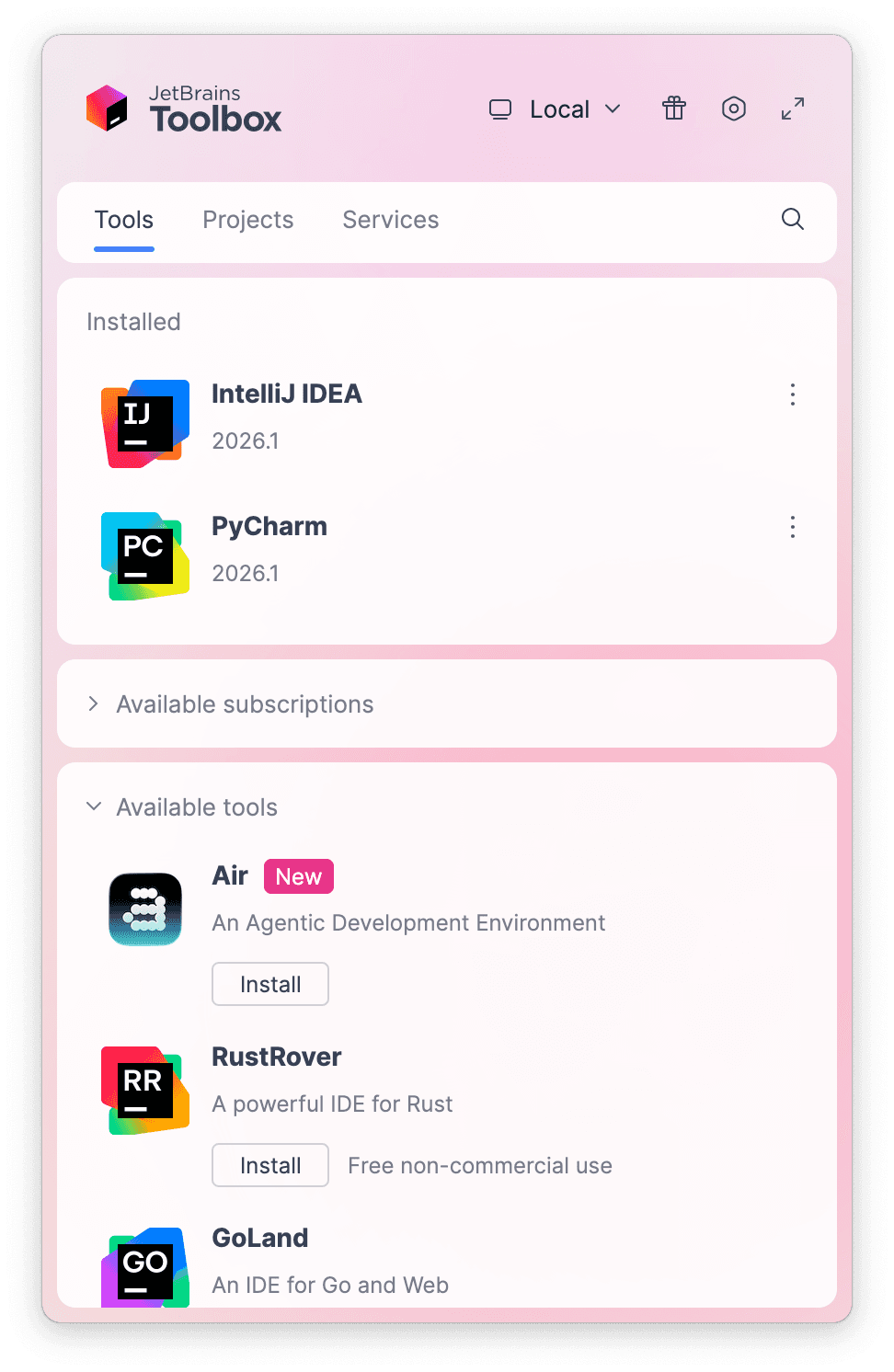
Install the free JetBrains Toolbox App
The JetBrains Toolbox App 2.7+ makes setting up your course effortless. Already have a compatible IDE? It will launch it. If not, the app will install the right IDE for your course.
Learn more about our licenses here.
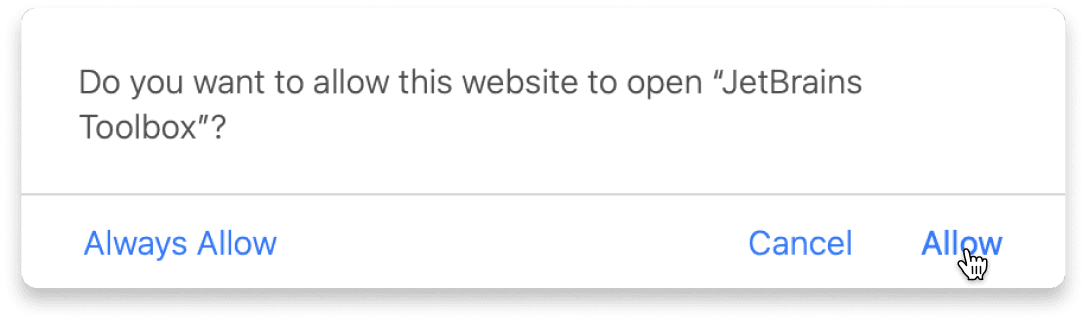
Confirm the course launch
Click Take course and then Allow to open the Toolbox App.
Select Always Allow to skip this confirmation in the future.
To return to the course later, find it in your IDE's recent projects.
Need more help? Check out our guide.
The JetBrains Toolbox App 2.7+ makes setting up your course effortless. Already have a compatible IDE? It will launch it. If not, the app will install the right IDE for your course.
Learn more about our licenses here.
Click Take course and then Allow to open the Toolbox App.
Select Always Allow to skip this confirmation in the future.
To return to the course later, find it in your IDE's recent projects.
Need more help? Check out our guide.
FAQ and troubleshooting
Yes, you will need the JetBrains Toolbox App and a JetBrains IDE.
Just click this link to install the JetBrains Toolbox App. We've taken care of all the necessary settings, and the app will handle the rest of the setup for you.
The JetBrains Toolbox App checks which IDE is compatible with your course and whether it is installed on your computer. If you have the necessary IDE installed, the app will open it. If not, JetBrains Toolbox will initiate the installation, prioritizing free community editions.
Yes, the JetBrains Toolbox App is essential, even if you already have a JetBrains IDE. It automatically prepares your IDE for studying by installing the required plugins and updating the IDE if necessary.
Please make sure you have the latest version of the JetBrains Toolbox App. To update, open the app and click Update Toolbox App, or download the latest version here.
If you’re using a Chrome-based browser, please also allow Find devices on local networks in the popup that appears on the course page. When this permission is granted, the page will detect when the Toolbox App opens on your system and you’ll be able to open the course properly.
Yes! It's 100% free and works with both the free and paid versions of JetBrains IDEs.
If you're a student, apply for the Student Pack to get full access to JetBrains IDEs for the duration of your studies. If not, check if you qualify for a free non-commercial license.