
Kotlin Onboarding 2: Object-Oriented Programming
Write smarter Kotlin with structure that scales—learn OOP by building real things.
About
Content
- Kotlin Onboarding - Welcome!
- Navigating Around
- Course View
- Editor
- Task Description
- Alias Project - Introduction
- Alias Project - How to Run
- Alias Project - Packages
- Alias Project - Classes and Type Aliases
- Alias Project - Create Utilities
- Alias Project - Data Classes
- Alias Project - Teams
- Alias Project - Companion Objects
- Alias Project - Mutable Map
- Alias Project - Team Service
- Alias Project - Annotations and Value Classes
- Alias Project - Cards
- Alias Project - Constants and Extension Functions
- Alias Project - Card Service
- Alias Project - Mutable List
- Alias Project - Finish the Game
- Word Generator Project - Introduction
- Word Generator Project - How to Run
- Word Generator Project - Teams
- Word Generator Project - Team Service
- Word Generator Project - Word and Word Service
- Word Generator Project - Word Service Validators
- Word Generator Project - Finish the Game
- Codenames Project - Introduction
- Codenames Project - How to Run
- Codenames Project - Objects
- Codenames Project - Initializer Blocks
- Codenames Project - Utils
- Codenames Project - Enum Classes
- Codenames Project - Key Card Type
- Codenames Project - SAM interfaces
- Codenames Project - Key Card Generator
- Codenames Project - Unique Key Card Generator
- Codenames Project - Key Card Service
- Codenames Project - Interfaces and Inheritance
- Codenames Project - Card Data
- Codenames Project - Card
- Codenames Project - Finish the Game
- Memory Trainer Project - Introduction
- Memory Trainer Project - How to Run
- Memory Trainer Project - Card Model
- Memory Trainer Project - Card Sequence Generator
- Memory Trainer Project - Card Service
- Memory Trainer Project - Finish the Game
- Survey
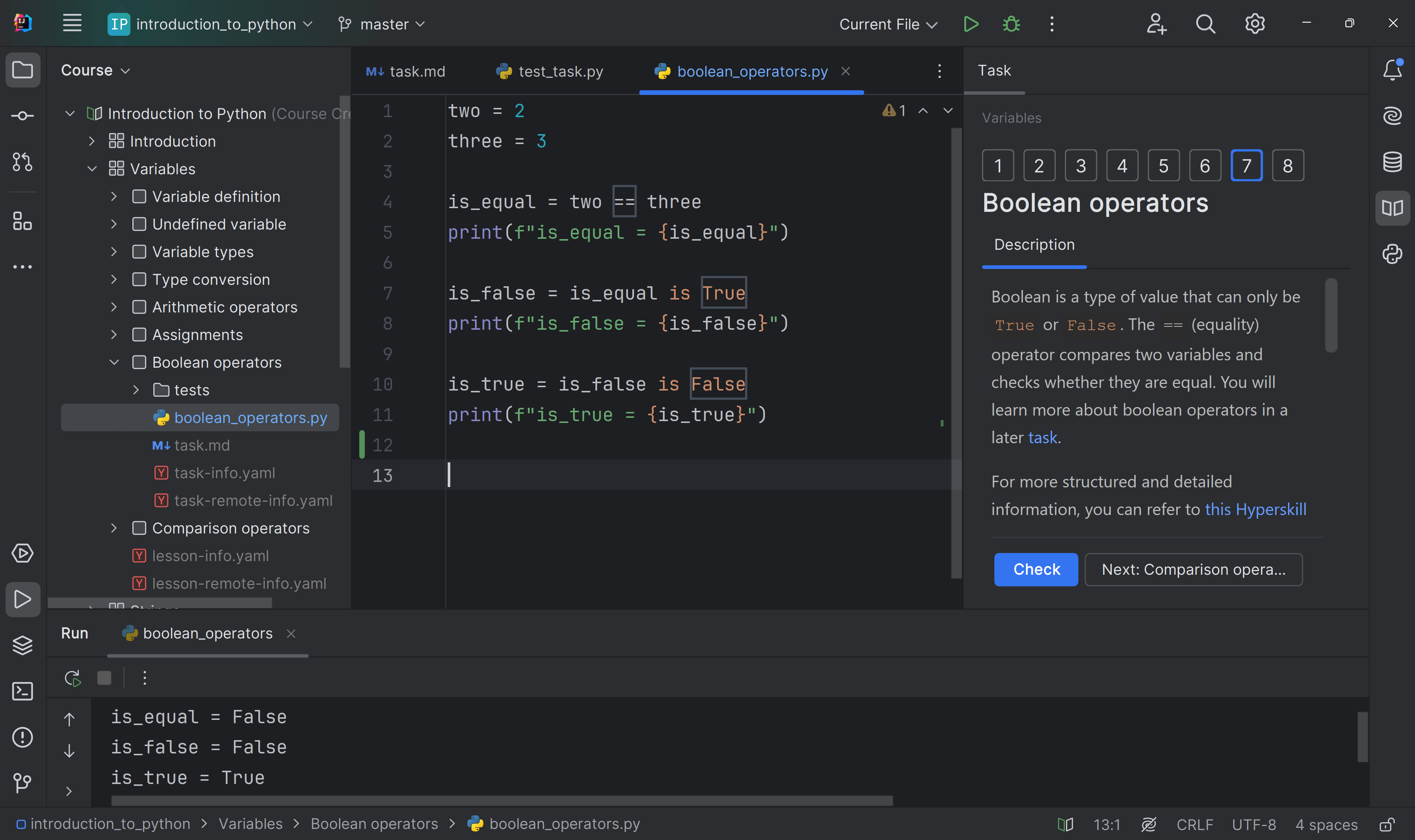
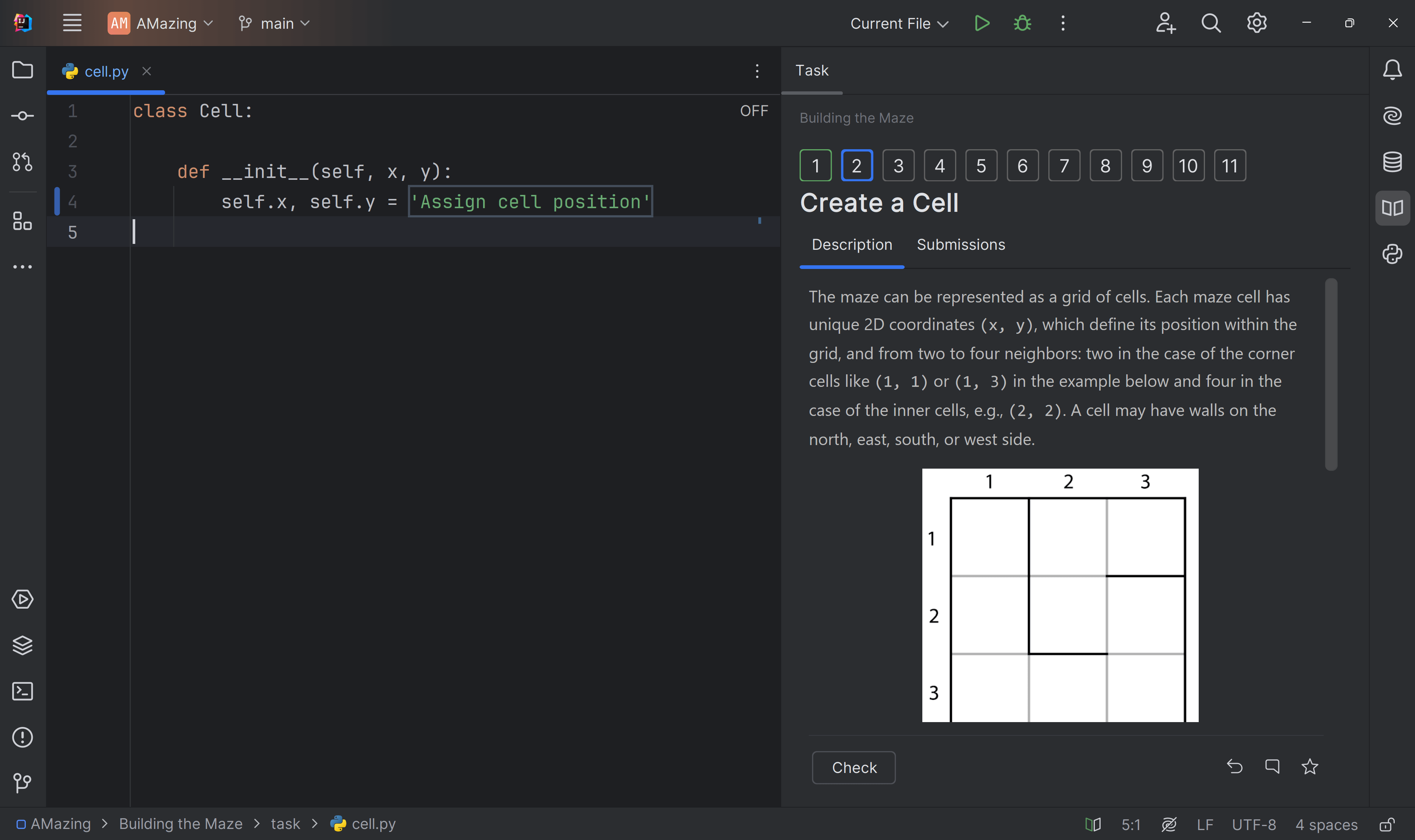
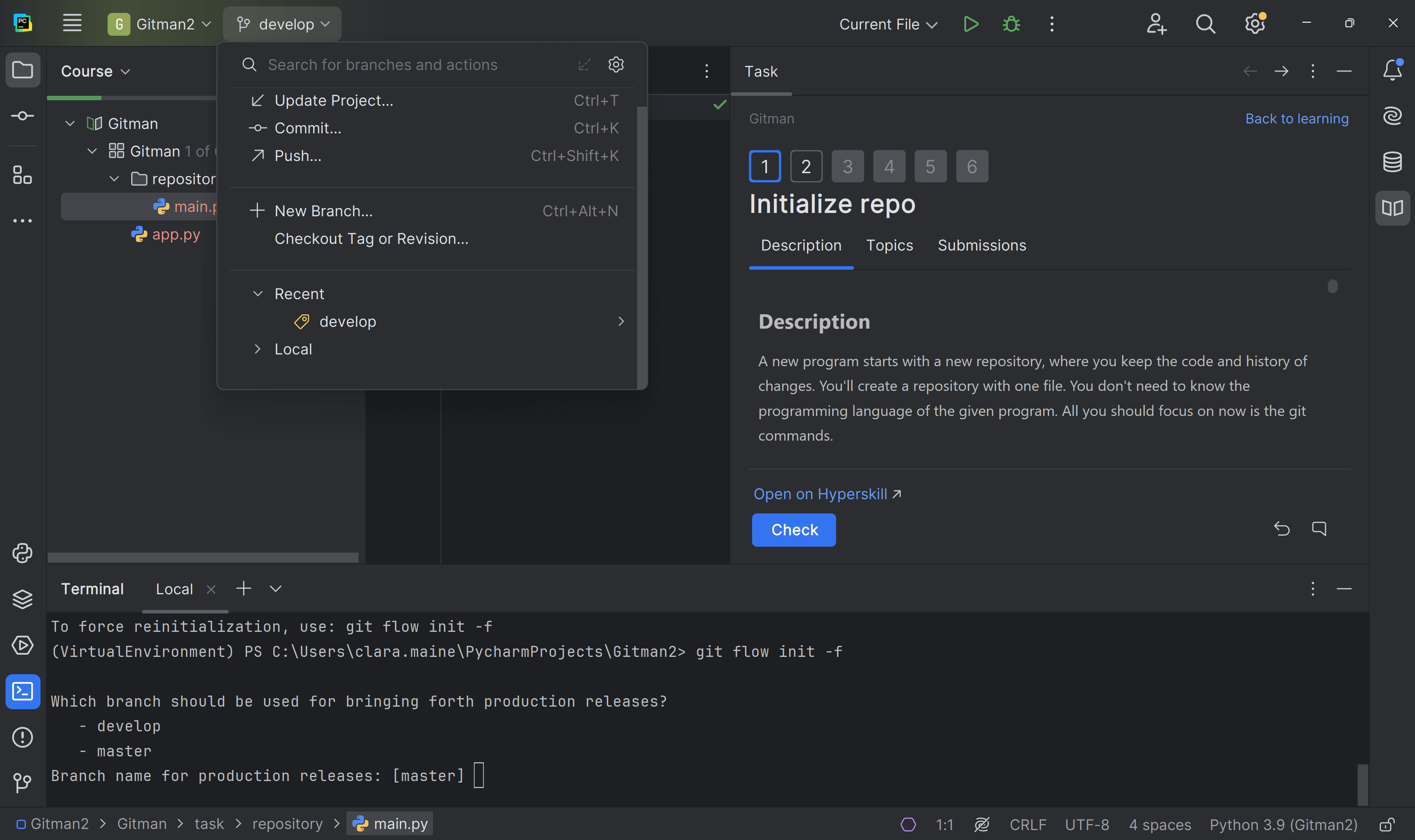
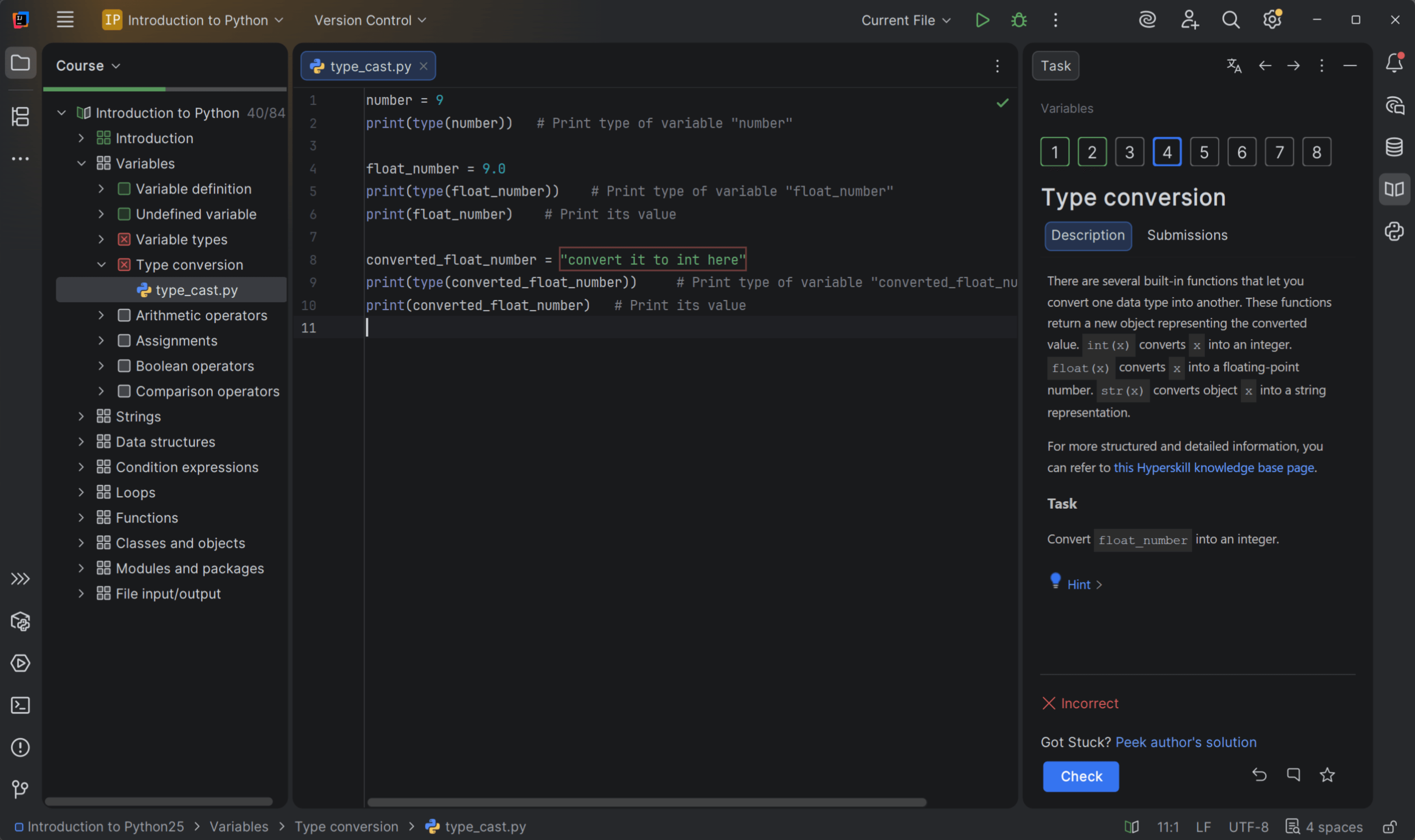

What do you need to start?
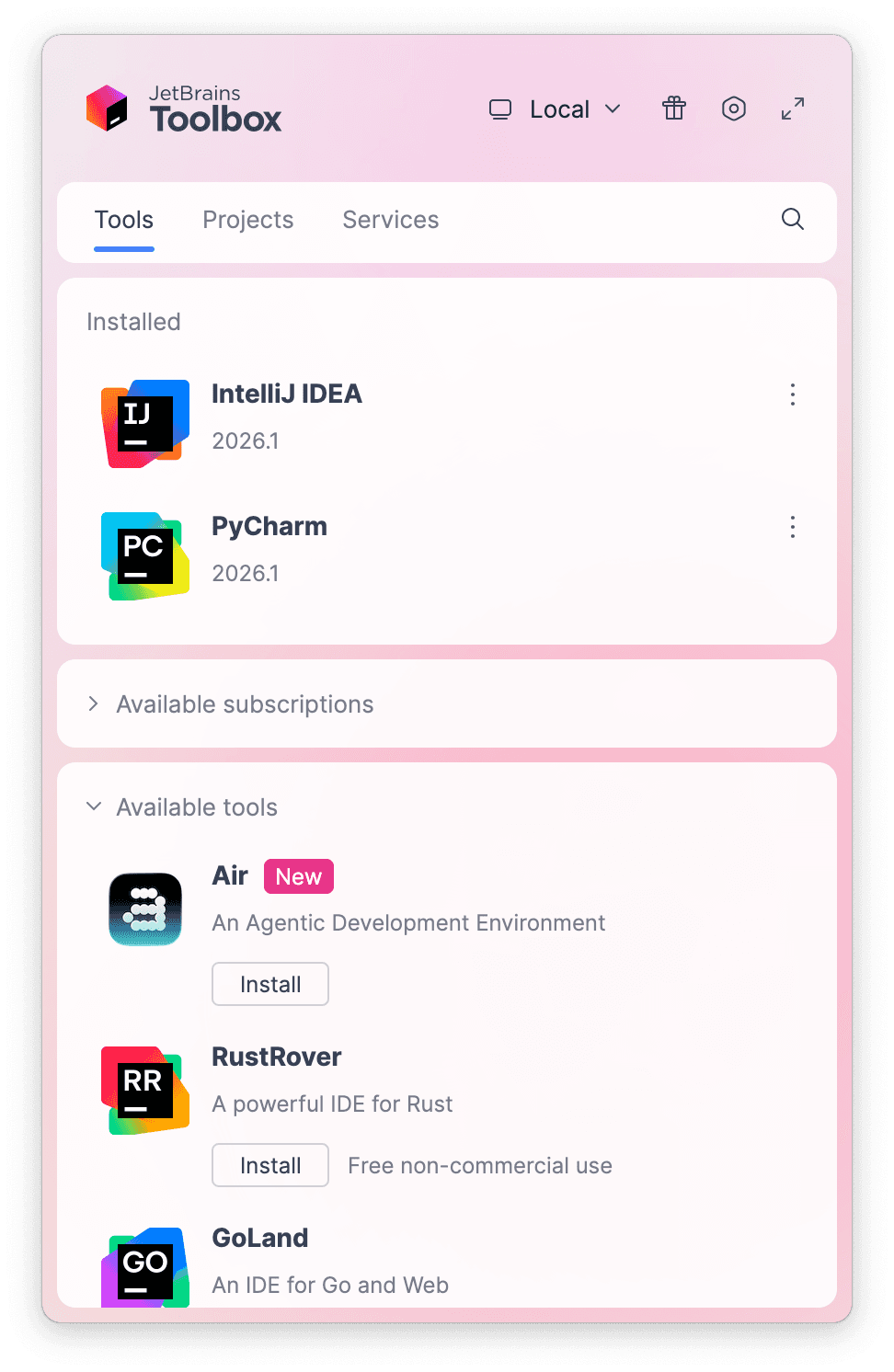
Install the free JetBrains Toolbox App
The JetBrains Toolbox App 2.7+ makes setting up your course effortless. Already have a compatible IDE? It will launch it. If not, the app will install the right IDE for your course.
Learn more about our licenses here.
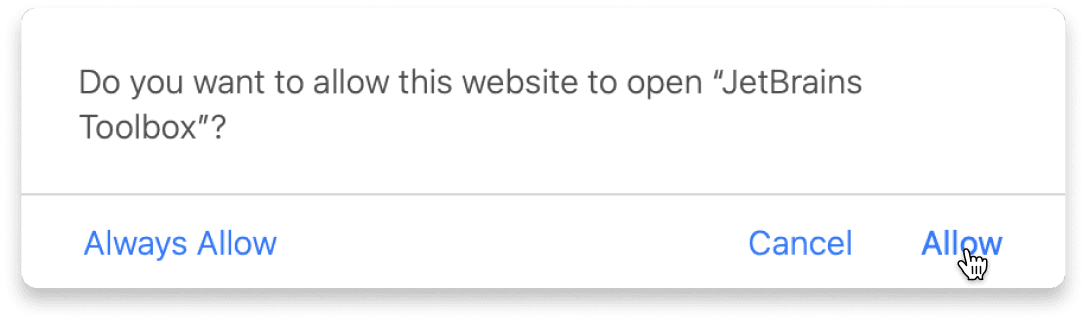
Confirm the course launch
Click Take course and then Allow to open the Toolbox App.
Select Always Allow to skip this confirmation in the future.
To return to the course later, find it in your IDE's recent projects.
Need more help? Check out our guide.
The JetBrains Toolbox App 2.7+ makes setting up your course effortless. Already have a compatible IDE? It will launch it. If not, the app will install the right IDE for your course.
Learn more about our licenses here.
Click Take course and then Allow to open the Toolbox App.
Select Always Allow to skip this confirmation in the future.
To return to the course later, find it in your IDE's recent projects.
Need more help? Check out our guide.
FAQ and troubleshooting
Yes, you will need the JetBrains Toolbox App and a JetBrains IDE.
Just click this link to install the JetBrains Toolbox App. We've taken care of all the necessary settings, and the app will handle the rest of the setup for you.
The JetBrains Toolbox App checks which IDE is compatible with your course and whether it is installed on your computer. If you have the necessary IDE installed, the app will open it. If not, JetBrains Toolbox will initiate the installation, prioritizing free community editions.
Yes, the JetBrains Toolbox App is essential, even if you already have a JetBrains IDE. It automatically prepares your IDE for studying by installing the required plugins and updating the IDE if necessary.
Please make sure you have the latest version of the JetBrains Toolbox App. To update, open the app and click Update Toolbox App, or download the latest version here.
If you’re using a Chrome-based browser, please also allow Find devices on local networks in the popup that appears on the course page. When this permission is granted, the page will detect when the Toolbox App opens on your system and you’ll be able to open the course properly.
Yes! It's 100% free and works with both the free and paid versions of JetBrains IDEs.
If you're a student, apply for the Student Pack to get full access to JetBrains IDEs for the duration of your studies. If not, check if you qualify for a free non-commercial license.